
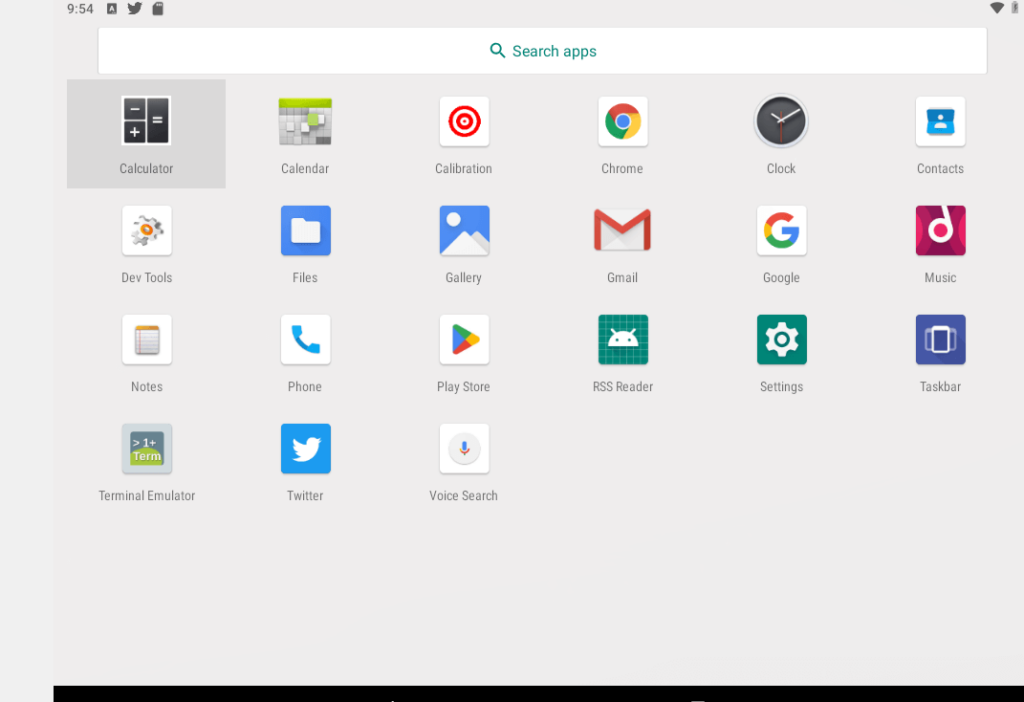
Experience Stock Android OS without any bloatware!
Calling all Mac OS and Windows users! Tired of the bloatware that comes with your Android devices? Well, we have a solution for you! Get ready to enjoy a clean and streamlined Android experience with Stock Android OS. And guess what? It’s super easy to set up!
Table of Contents
1. Introduction
2. Setting Up Stock Android OS on Mac OS
– Downloading Virtual Box
– Mac OS (Intel Based)
– Mac OS (M1/M2 Apple Silicon)
– Using UTM to Create a Virtual Machine for Android
3. Downloading Android X86 ISO Image
– Choosing the Right Version
– Downloading from Fosshub
4. Creating a Virtual Machine with Android X86
– Selecting the OS in Virtual Box
– Setting Standard Resources for Smoother Performance
5. Installing Twitter on Stock Android OS (Mac)
6. Setting Up Stock Android OS on Windows
– Downloading Virtual Box
– Downloading Android X86 ISO Image
7. Creating a Virtual Machine with Android X86 (Windows)
– Selecting the OS in Virtual Box
– Setting Standard Resources for Smoother Performance
8. Installing Twitter on Stock Android OS (Windows)
9. Using Bluestacks Android Emulator
– Downloading Bluestacks for Windows
– Downloading Bluestacks for Mac OS
– Installing Twitter on Bluestacks
10. Alternative Method: Using Twitter APK
11. Improving Audio Quality for Twitter Spaces
– VoiceMaster Pro
– Virtual Audio Cable
– LightHost
– Equipment Used
12. Conclusion
**Download Links:**
For Mac OS users:
1. VirtualBox for Mac OS: [Download](https://www.virtualbox.org/wiki/Downloads)
2. UTM for Mac OS: [Download](https://mac.getutm.app)
3. Android X86 ISO Image: [Download](https://www.android-x86.org)
4. Twitter APK: [Download](https://androidapksfree.com/twitter/com-twitter-android/download/)
For Windows users:
1. VirtualBox for Windows: [Download]
2. Android X86 ISO Image: [Download]
3. Bluestacks for Windows: [Download]()
4. Twitter APK: [Download]()
Now, let’s dive into the exciting steps to experience Stock Android OS without any bloatware:
For Mac OS users:
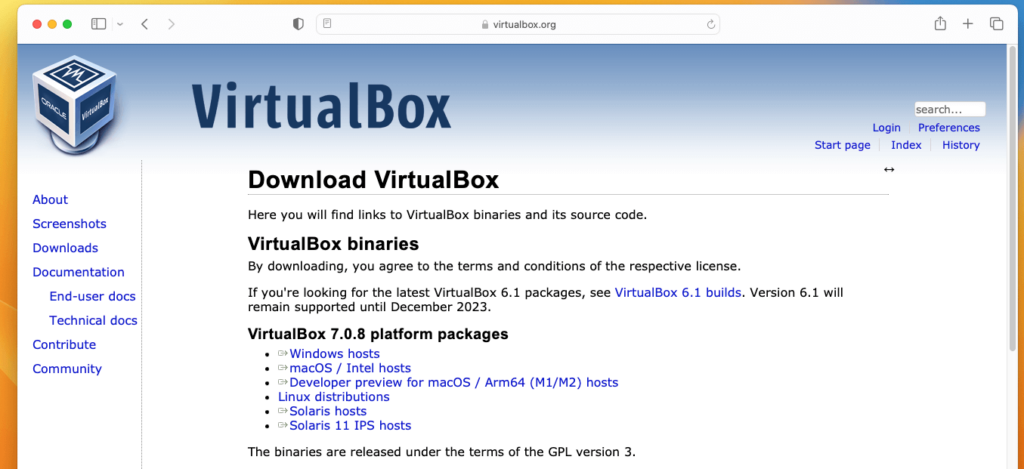
1. Let’s start by downloading VirtualBox, a powerful virtualization tool that allows you to run Android on your Mac.
Visit the official VirtualBox website at [VirtualBox Downloads] and select the appropriate version for your Mac OS. If you have an Intel-based Mac, go ahead and download the Intel-based version. If you’re rocking the new M1 or M2 Apple Silicon, make sure to grab the Apple Silicon version.
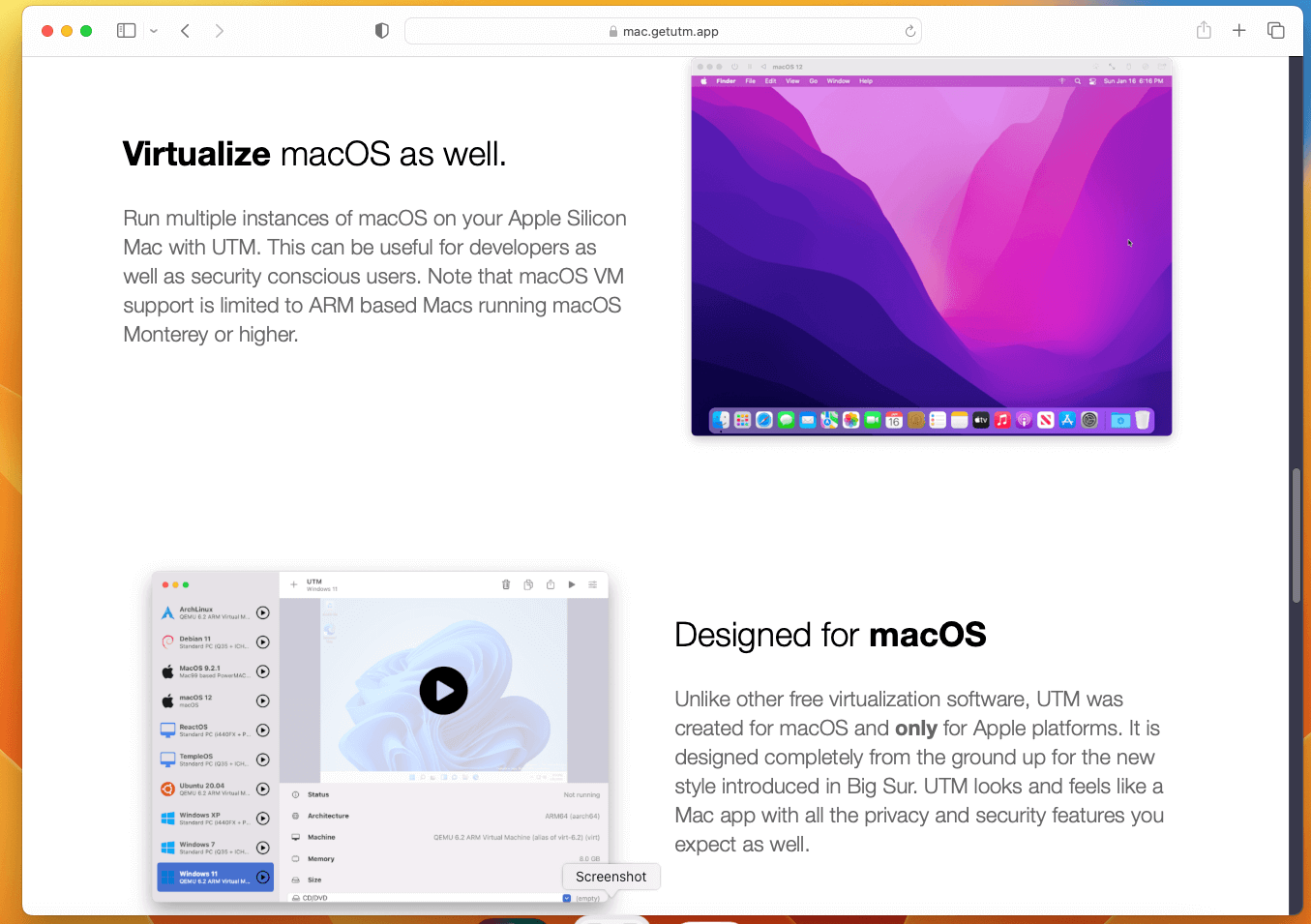
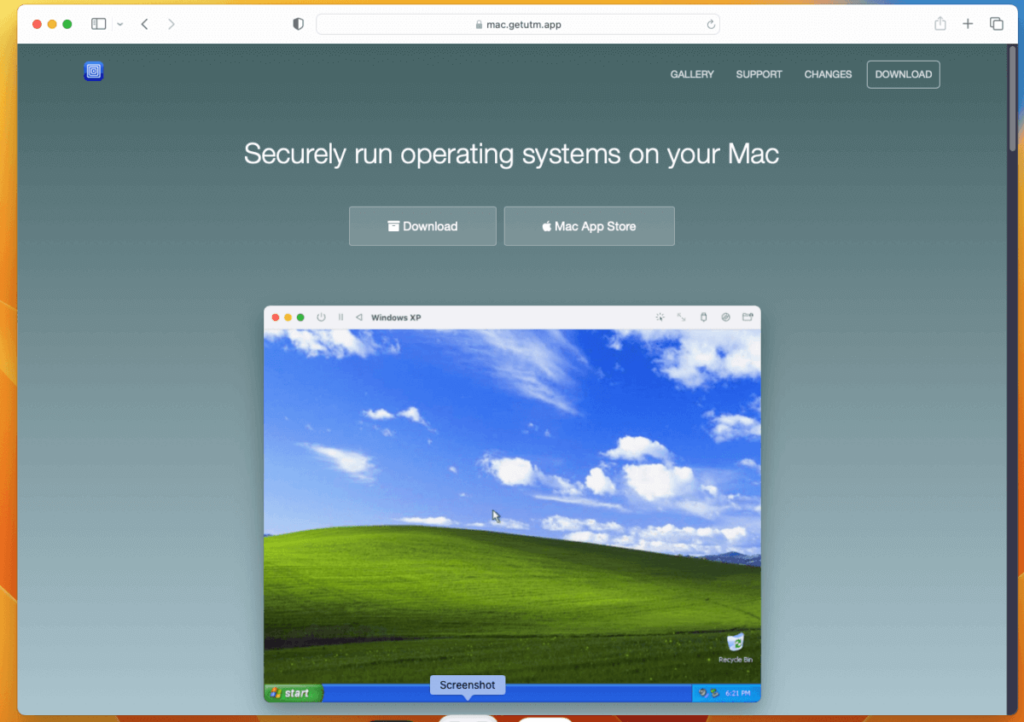
2. But wait, there’s more! If you prefer a more user-friendly virtualization solution, you can use UTM (Universal Turing Machine) to create a virtual machine for Android on your Mac. UTM provides a simpler interface and makes the setup process even smoother.
To get started, visit the UTM website at [UTM for Mac OS] and download the application.
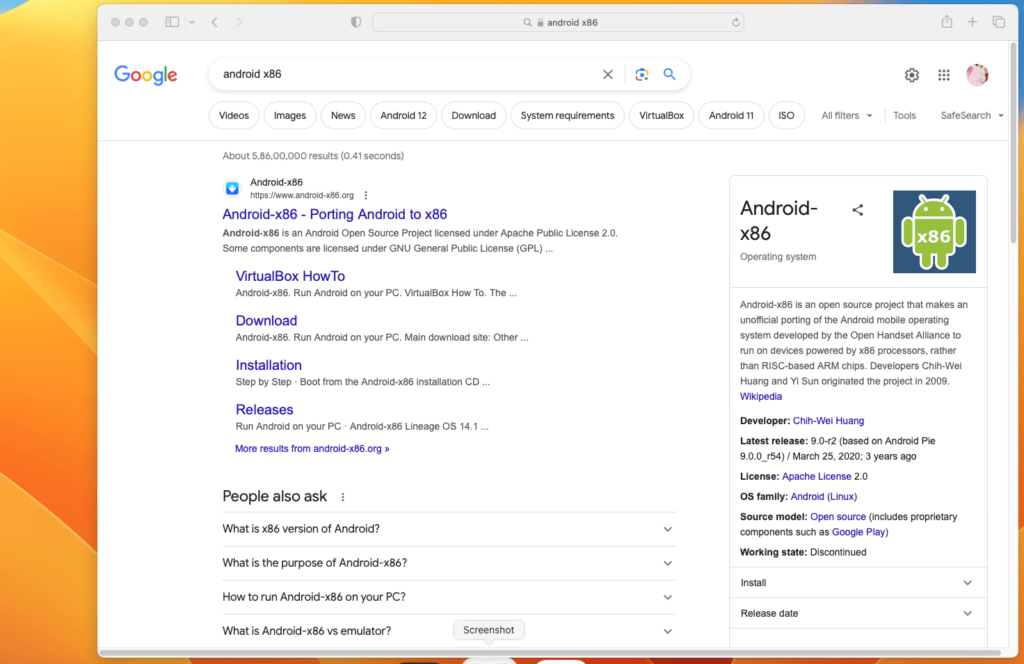
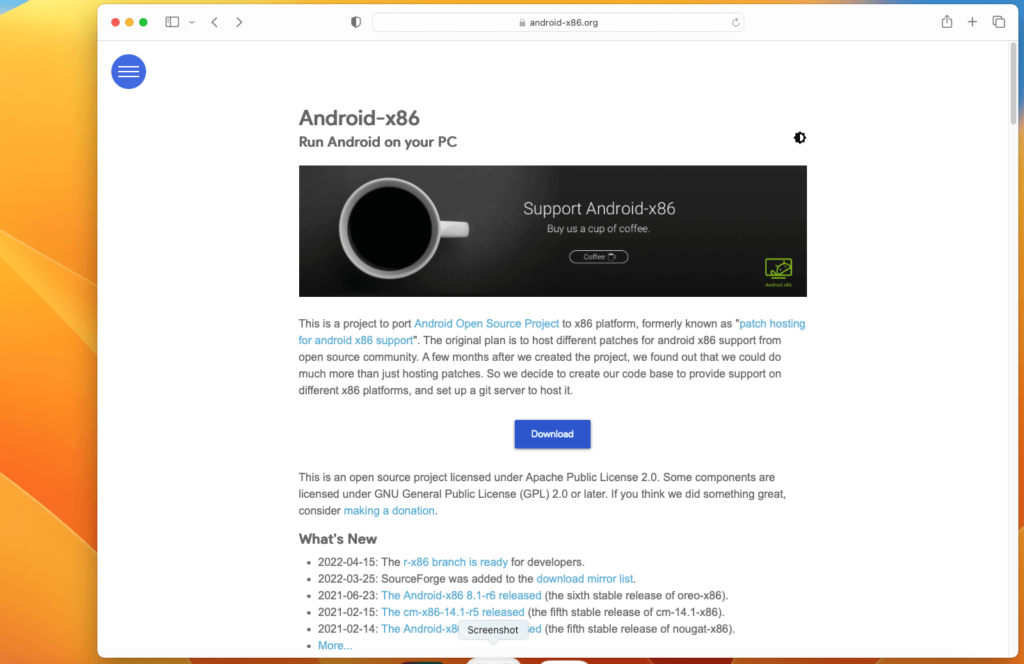
3. Once you have VirtualBox or UTM installed on your Mac, it’s time to download the Android X86 ISO image. This is the operating system image that will be used to create your virtual Android device.
Visit the official Android X86 website at [Android X86] and choose the version that suits your needs. Make sure to select the appropriate version for virtual machines.
4. After downloading the Android X86 ISO image, you can proceed to create a virtual machine with VirtualBox or UTM. Let’s start with VirtualBox:
- Open VirtualBox on your Mac.
- Click on “New” to create a new virtual machine.
- Give your virtual machine a name (e.g., “Stock Android”).
- Select “Linux” as the type and “Other Linux (64-bit)” as the version.
- Allocate a suitable amount of memory for your virtual machine (e.g., 2GB or more).
- Choose the option to “Create a virtual hard disk now.”
- Select “VDI (VirtualBox Disk Image)” as the hard disk file type.
- Choose “Dynamically allocated” for the storage on physical hard disk.
- Allocate an appropriate amount of disk space for your virtual machine (e.g., 16GB or more).
- Click on “Create” to finish creating the virtual machine.
Now, let’s configure the virtual machine settings:
- Select the newly created virtual machine from the list.
- Click on “Settings” to open the virtual machine settings.
- Go to the “Storage” section and click on the “Empty” CD/DVD drive.
- In the attributes panel, click on the CD/DVD icon and choose the Android X86 ISO image you downloaded earlier.
- Click “OK” to save the settings.
You’re now ready to install Stock Android OS on your virtual machine!
5. Installing Twitter on Stock Android OS (Mac):
- Start the virtual machine by clicking on the “Start” button in VirtualBox.
- The virtual machine will boot up and present you with the Android installation screen.
- Use the arrow keys on your keyboard to navigate and select “Install Android-x86 to hard disk.”
- Follow the on-screen instructions to complete the installation process.
- Once the installation is complete, the virtual machine will restart.
- Log in to your newly installed Stock Android OS.
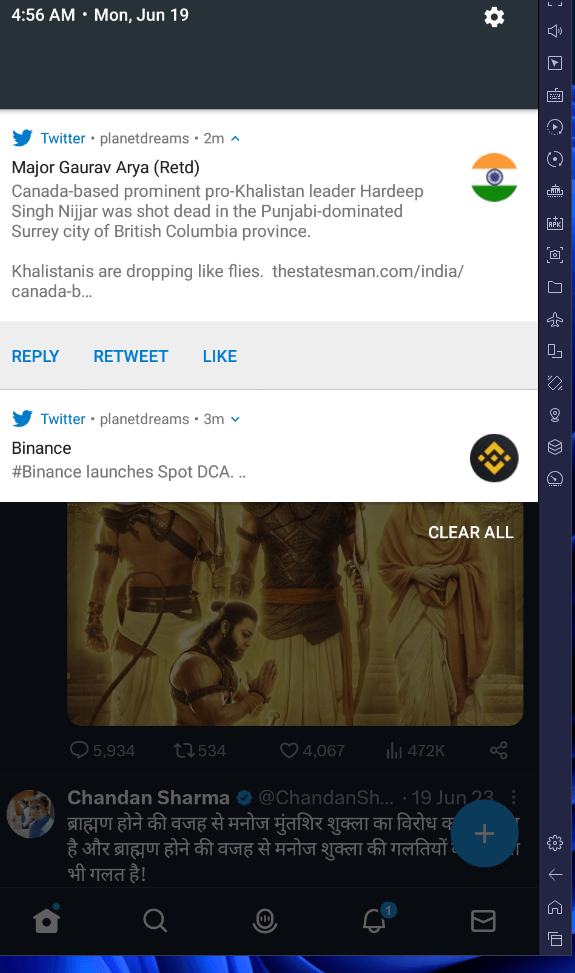
- Open the browser on Stock Android OS and visit the Twitter website.
- Alternatively, you can download the Twitter APK from [Twitter APK].
- Install Twitter on Stock Android OS by opening the APK file and following the installation prompts.
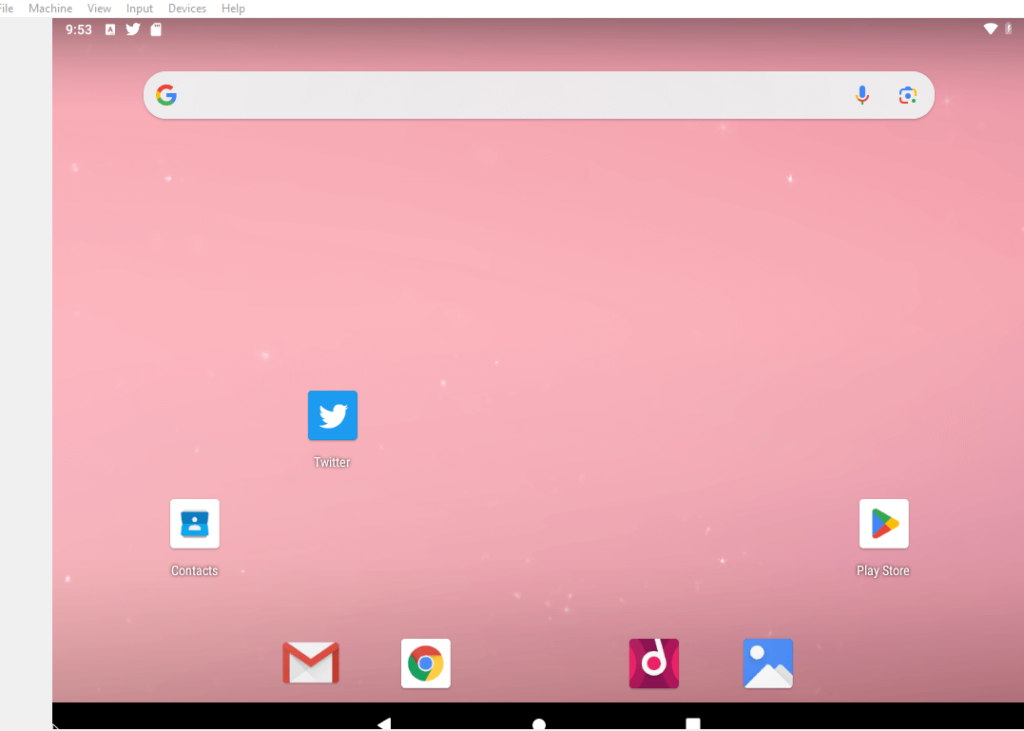
Congratulations! You have successfully set up Stock Android OS on your Mac using either VirtualBox or UTM, and you have installed Twitter on your virtual Android device. Now you can enjoy a clean and bloatware-free Android experience right from your Mac!
Next, let’s explore how to Set Up Stock Android OS on Windows.
6. Setting Up Stock Android OS on Windows:
To experience Stock Android OS without bloatware on your Windows machine, follow these steps:
- Download and install VirtualBox for Windows from the official VirtualBox website at [VirtualBox Downloads]. Choose the Windows version that matches your operating system.
- Once VirtualBox is installed, it’s time to download the Android X86 ISO image. Visit the official Android X86 website at [Android X86] and select the appropriate version for virtual machines. Choose either the 32-bit or 64-bit version based on your system configuration.
- After downloading the Android X86 ISO image, launch VirtualBox on your Windows machine.
- Click on “New” to create a new virtual machine.
- Provide a name for your virtual machine, such as “Stock Android.”
- Select “Linux” as the type and “Other Linux (64-bit)” as the version.
- Allocate a suitable amount of memory for your virtual machine (e.g., 2GB or more).
- Choose the option to “Create a virtual hard disk now.”
- Select “VDI (VirtualBox Disk Image)” as the hard disk file type.
- Choose “Dynamically allocated” for the storage on physical hard disk.
- Allocate an appropriate amount of disk space for your virtual machine (e.g., 16GB or more).
- Click on “Create” to finish creating the virtual machine.
- In the virtual machine settings, go to the “Storage” section.
- Click on the “Empty” CD/DVD drive and then click on the CD/DVD icon in the attributes panel.
- Choose the Android X86 ISO image you downloaded earlier.
- Click “OK” to save the settings.
- Start the virtual machine by clicking on the “Start” button in VirtualBox.
- The virtual machine will boot up and present you with the Android installation screen.
- Use the arrow keys on your keyboard to navigate and select “Install Android-x86 to hard disk.”
- Follow the on-screen instructions to complete the installation process.
- Once the installation is complete, the virtual machine will restart.
- Log in to your newly installed Stock Android OS.
- Open the browser on Stock Android OS and visit the Twitter website.
- Alternatively, you can download the Twitter APK from [Twitter APK].
- Install Twitter on Stock Android OS by opening the APK file and following the installation prompts.
Congratulations! You have successfully set up Stock Android OS on your Windows machine using VirtualBox. You can now enjoy a clean and bloatware-free Android experience on your Windows PC.
But hey, we’ve got another exciting method for you—using an Android emulator called Bluestacks. Let’s explore that next!
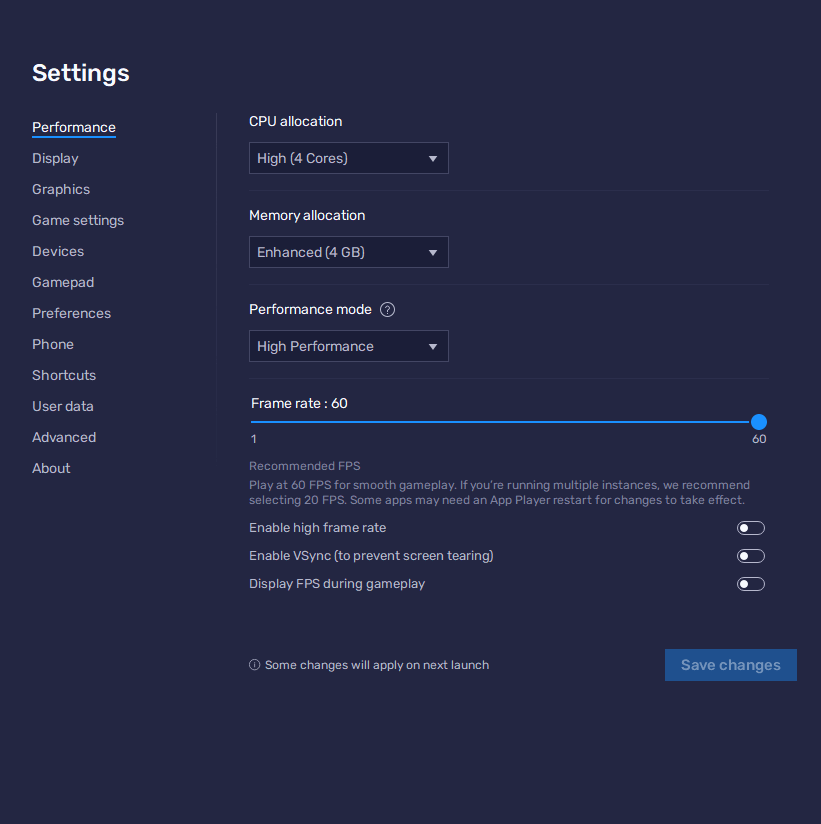
7. Using Bluestacks Android Emulator:
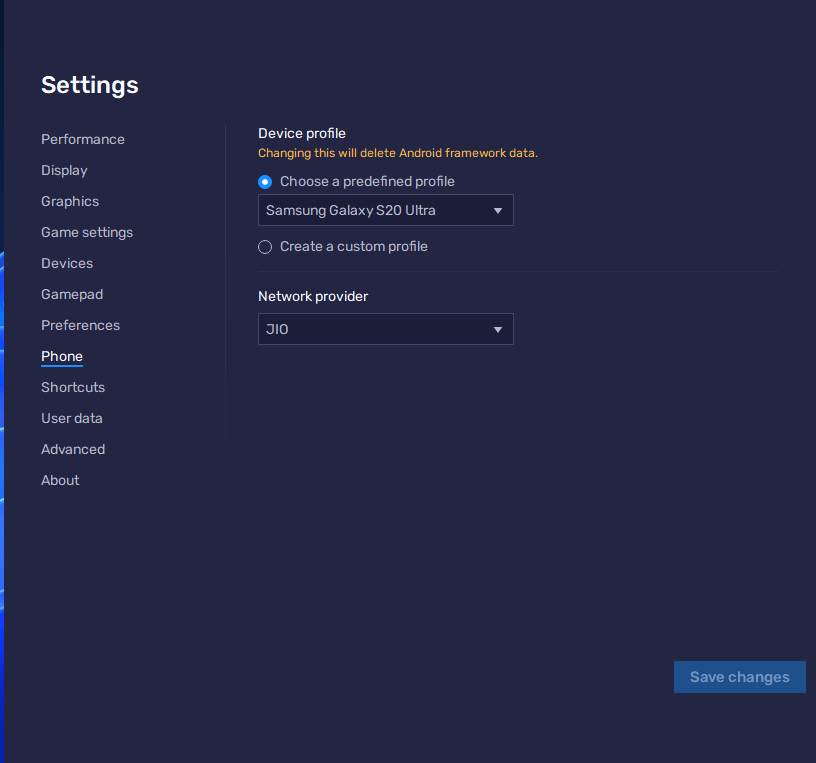
Bluestacks is a popular Android emulator that allows you to run Android apps and games on your Windows or Mac computer. It provides a user-friendly interface and a seamless Android experience on your desktop. Here’s how to get started:
For Windows users:
- Download the Bluestacks installer from [Windows Download](https://ak-build.bluestacks.com/public/app-player/windows/nxt/5.12.3.1001/0d5eb563c31022d1303e2da44920d337/BlueStacksMicroInstaller_5.12.3.1001_native.exe?filename=BlueStacksInstaller_5.12.
- Once the download is complete, run the Bluestacks installer.
- Follow the on-screen instructions to complete the installation process.
- After the installation is finished, launch Bluestacks on your Windows machine.
- Sign in to your Google Account to access the Play Store.
- Search for the Twitter app in the Play Store and click on “Install” to download and install it on Bluestacks.
- Once the installation is complete, you can launch the Twitter app and log in with your Twitter account.
- Enjoy using Twitter on your Windows machine with the Bluestacks Android emulator.
For Mac OS users:
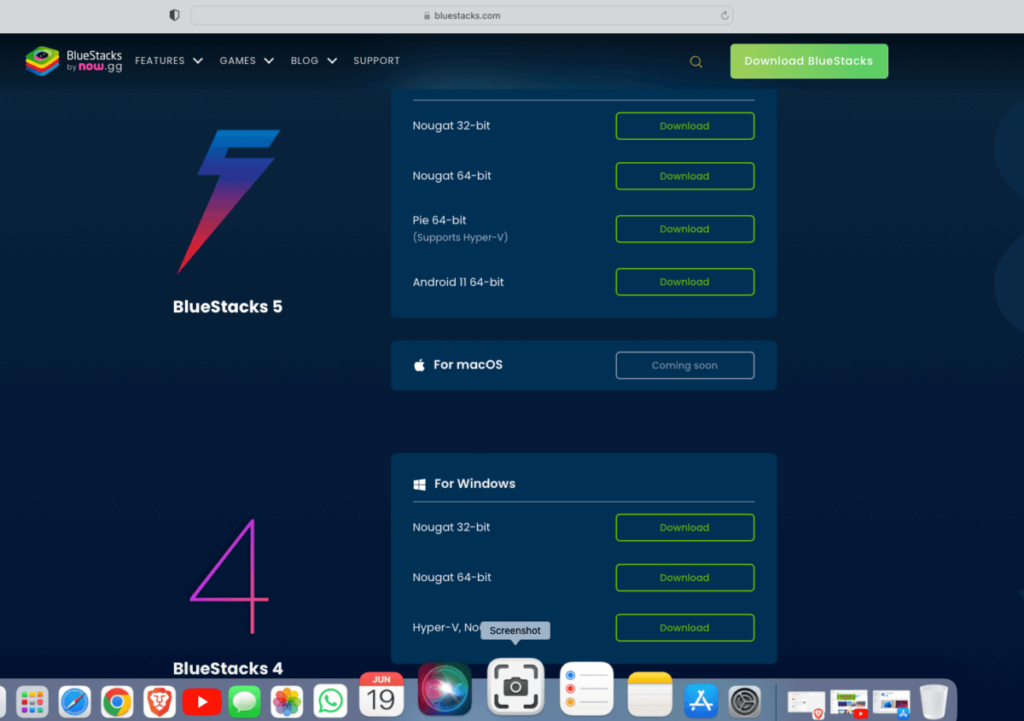
- Download the Mac version of Bluestacks by clicking [here](https://mac-cdn.bluestacks.com/public/app-player/mac/bgp64_mac/4.270.1.2803/c610c2d26a70cad789a74e586a08e51f/x64/BlueStacksInstaller_4.270.1.2803.dmg?filename=BlueStacksInstaller_4.270.1.2803_ec06781646ed70500a70523984031631.dmg).
- Locate the downloaded DMG file and double-click on it to mount the disk image.
- Drag and drop the Bluestacks app into the Applications folder to install it.
- Launch Bluestacks from the Applications folder.
- Sign in to your Google Account to access the Play Store.
- Search for the Twitter app in the Play Store and click on “Install” to download and install it on Bluestacks.
- Once the installation is complete, you can launch the Twitter app and log in with your Twitter account.
- Enjoy using Twitter on your Mac machine with the Bluestacks Android emulator.
Using an Android emulator like Bluestacks provides a convenient way to experience Android apps on your computer. Whether you’re using Windows or Mac OS, you can now enjoy the Twitter app seamlessly on your desktop.
Now, let’s move on to an alternative method of installing Twitter using the Twitter APK.
8. Alternative Method: Using Twitter APK:
If you prefer using the Twitter APK to install the app directly without accessing the Play Store, follow these steps:
- Download the Twitter APK from [Twitter APK Links](https://androidapksfree.com/twitter/com-twitter-android/download/).
- Once the download is complete, locate the APK file on your computer.
- Right-click on the APK file and choose “Open With” or “Open With Bluestacks” (if you have Bluestacks installed) to initiate the installation process.
- Follow the on-screen instructions to install the Twitter app.
- Once the installation is complete, you can launch the Twitter app and log in with your Twitter account.
Using the Twitter APK allows you to install the app directly without the need for the Play Store. It’s a convenient method if you prefer to have more control over the installation process.
Now that you have multiple methods to install Twitter on your computer, you can choose the one that suits your preferences and enjoy tweeting and staying connected with the Twitter community.
Next, let’s explore how to improve the audio quality for Twitter Spaces, ensuring a remarkable audio experience.
9. Improving Audio Quality for Twitter Spaces:
Hosting Twitter Spaces comes with the need for excellent audio quality to provide an immersive experience for your listeners. Here are some tips and tools to enhance the audio quality:
VoiceMaster Pro:
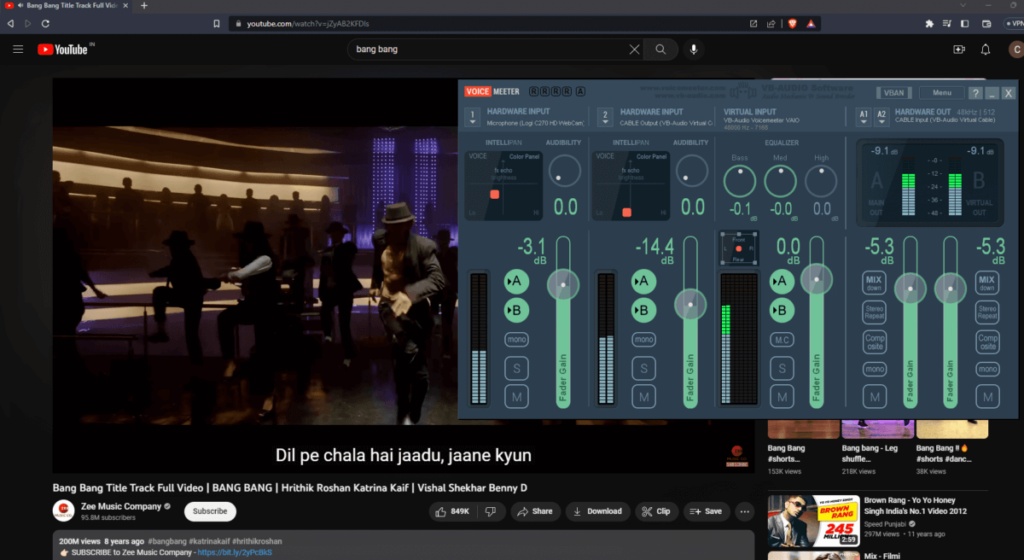
VoiceMaster Pro is a powerful tool that allows you to mix and adjust multiple audio inputs in real-time. With VoiceMaster Pro, you can fine-tune the quality of your audio in Twitter Spaces. It offers features such as noise reduction, EQ adjustments, and volume control to enhance the overall audio experience. You can connect your microphone and other audio devices to VoiceMaster Pro and configure the settings according to your preferences.
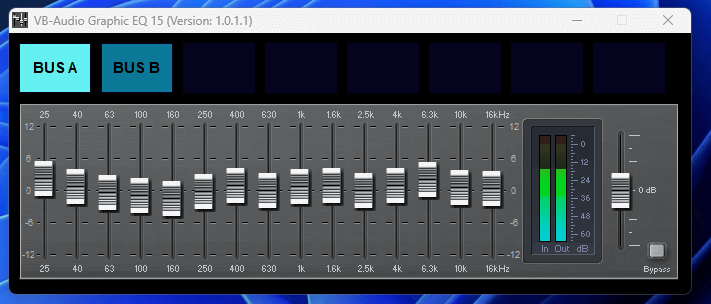
LightHost
Light House description
LightHost Plugins
- Use a High-Quality Microphone: Investing in a high-quality microphone can significantly improve the audio quality in Twitter Spaces. Look for microphones that offer good frequency response, low noise levels, and clear audio reproduction. USB microphones or XLR microphones with an audio interface are popular choices among content creators and podcasters.
- Check your Internet Connection: A stable and high-speed internet connection is crucial for hosting Twitter Spaces with good audio quality. Ensure that you have a reliable internet connection, preferably a wired connection or a strong Wi-Fi signal. Unstable or slow internet can result in audio glitches and poor sound quality.
- Optimize the Room Acoustics: If you’re hosting Twitter Spaces from a physical location, consider optimizing the acoustics of the room. Reduce background noise by using sound-absorbing materials such as acoustic panels or foam. Minimize echo and reverberation by placing carpets or rugs on the floor and using curtains or drapes on windows to dampen sound reflections.
- Test and Adjust Audio Settings: Before hosting a Twitter Spaces session, it’s essential to test your audio settings and make necessary adjustments. Check the microphone levels, audio input/output devices, and ensure that the audio is clear and balanced. You can use the built-in audio settings of your operating system or third-party software to fine-tune the audio parameters.
By implementing these tips and tools, you can significantly enhance the audio quality in your Twitter Spaces sessions, providing an enjoyable listening experience for your audience.
Conclusion:
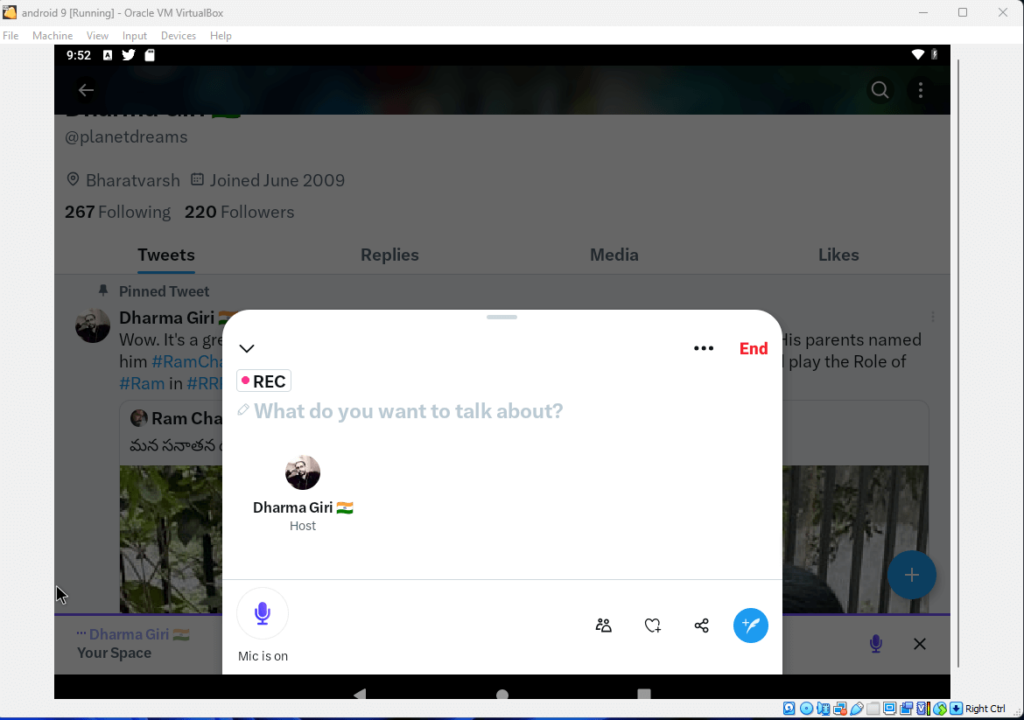
Twitter Spaces is an exciting platform that allows you to engage with your followers and create meaningful conversations. Whether you’re hosting Spaces from your mobile device or your computer, you now have various methods to install and access the Twitter app. From using virtualization tools like VirtualBox to Android emulators like Bluestacks, you can seamlessly integrate Twitter into your Windows or Mac environment.
Additionally, by following the suggestions to improve audio quality in Twitter Spaces, you can create an immersive and professional audio experience for your listeners. Remember to use tools like VoiceMaster Pro, invest in a high-quality microphone, optimize your room acoustics, and ensure a stable internet connection.
Now that you’re equipped with the knowledge and tools to set up Twitter and enhance audio quality in Twitter Spaces, it’s time to start hosting engaging conversations, connecting with your audience, and making your mark in the vibrant Twitter community. Happy tweeting and hosting!
Disclaimer: This article is for informational purposes only. The mentioned tools, software, and methods are based on available information at the time of writing. Always ensure that you download software and files from trusted sources and adhere to the terms and conditions of the respective platforms and applications.


